Are you still struggling with managing and analyzing large datasets—like 1000 records or more—within CRM systems? Then no more. We have encountered this issue several times: despite CRM’s enhanced performance, it still falls short, leaving organizations struggling with sluggish performance and shallow analytics.
So, at Soluzione, we have not just integrated Power BI but also noted its game-changing results in bringing the full potential of both solutions through integrated data experiences. In this blog post, let’s explain everything about embedding Power BI into Dynamics 365.
Why Does Embedding Power BI into Dynamics 365 Matter?
Why Does Embedding Power BI into Dynamics 365 Matter?
Your CRM system is a data goldmine, housing thousands of leads, deals, customer issues, and performance metrics. It holds the raw material for better decisions and scalable growth. But raw data alone doesn’t deliver outcomes. The ability to process, analyze, and visualize that data in real time—inside your operational environment—is what creates the real edge. We have achieved this in Dynamics 365 CRM after embedding Microsoft Power BI.
Key Benefits of this Integration:
Lightning-Fast Performance: Instead of relying on CRM dashboards that often lag or time out under heavy loads, Power BI’s cloud-first architecture ensures fluid performance—even with thousands of records.
Real-Time Insights: Power BI brings always-fresh data into model-driven apps, so every decision is backed by the most current information.
Secure and Contextual Data Presentation: Embedded reports respect Dynamics security roles and datasets, presenting only what’s relevant to the user in the context of the record they’re viewing—ensuring trust, clarity, and compliance.
Interactive Visualisations: Data is not just presented with insights; you get dynamic charts, filters, and drill-downs that make large datasets easier to navigate—and more useful to analyse.
Unified Workflow: By embedding Power BI’s advanced analytics directly into Dynamics 365, we get a unified platform that delivers real-time insights, interactive visualizations, and robust performance, eliminating the need for external tools and streamlining your operations.
Beyond Traditional CRM Dashboards: Overcoming Critical Limitations
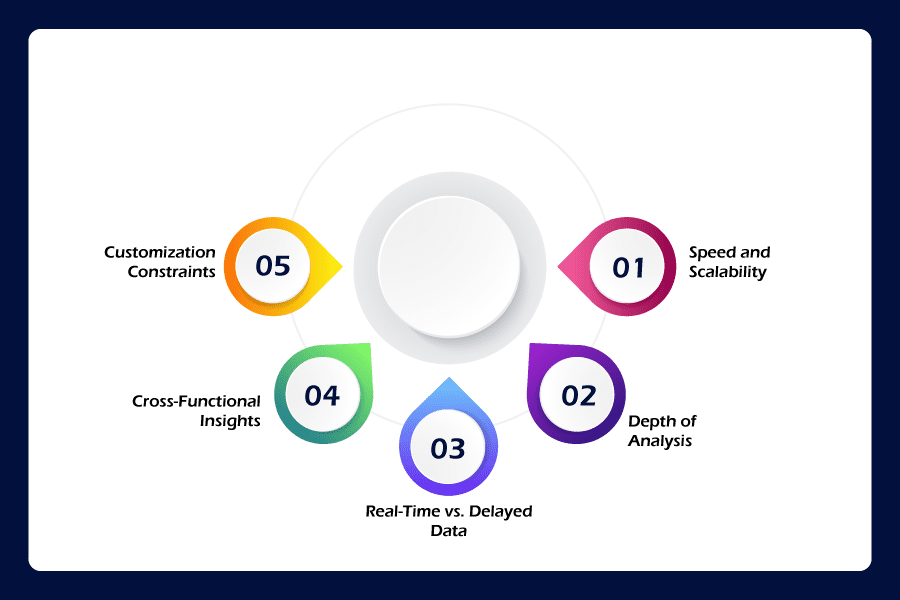
Standard CRM dashboards in Dynamics 365 are a starting point, but they often buckle under the weight of large datasets. Here’s how our Power BI integration surpasses them and addresses their key limitations:
- Speed and Scalability: Traditional dashboards slow down or crash when handling more records, while Power BI scales with growing datasets and delivers performance even when rendering complex visualizations.
- Depth of Analysis: CRM dashboards often struggle to handle complex analysis of large datasets. With Power BI Embedded, users move with highly interactive visuals, featuring trend lines, drill-throughs, and slicers that reveal deeper context from multiple angles.
- Real-Time vs. Delayed Data: Unlike traditional dashboards that rely on periodic refreshes, Power BI keeps insights current as your data evolves—vital for fast-paced sales teams, support departments, or operations that can’t afford to make decisions on yesterday’s numbers.
- Cross-Functional Insights: Power BI integrates data from ERP systems, APIs, and data lakes (other than just CRM), providing a holistic view of business performance.
- Customization Constraints: Dynamics 365 offers customization, but when integrated with Power BI, it offers complete control over visuals down to the metric, layout, and logic, making every report deeply relevant and user-centric.
Real-World Business Intelligence Scenarios
We’ve deployed this solution for clients across industries, managing large datasets and delivering measurable results that traditional CRM dashboards couldn’t achieve. Here are some highlights:
1. Sales
Instantly see real-time performance metrics (win/loss ratios, deal velocity, pipeline stages, quota progress) inside Opportunity or Account forms, without switching tabs.
2. Customer Service
- Agents and managers see dynamic Power BI visuals directly inside the Case entity.
- They can track resolution times, case volumes, SLA compliance trends, and even agent productivity.
- This can empower support teams in faster case resolution and better customer satisfaction as their decisions are data-backed.
3. Operations
- Operations managers can monitor live inventory levels, supply chain disruptions, procurement cycles, or order fulfillment KPIs — all in one place.
- This visibility enables proactive planning and quick response, minimizing downtime and maximizing efficiency.
Prerequisites to Embed Power BI Into Dynamics 365
Power BI embedded in Dynamics 365 only delivers value when configured correctly. That means getting the technical foundations right and avoiding the time traps, permission headaches, and broken iframe errors that plague so many first-time setups.
Here’s what you need –
- Power BI Pro or Premium License – Basic but essential.
- Published Reports – Don’t embed drafts; reports should be clean, finalized, and tested with user roles.
- Use Model-Driven App (Power Apps) in Dynamics 365 – instead of Canvas apps to avoid issues in dynamic filtration.
- XRM Toolbox (with Power BI Embedder Plugin).
Access & Roles –
- Power BI report permissions must be granted to all target users.
- Dynamics 365 roles: System Customizer or higher is ideal.
- Power BI Workspace access: Contributor role or above (admin) if managing embedded content.
Step-by-Step Guide for Embedding Process
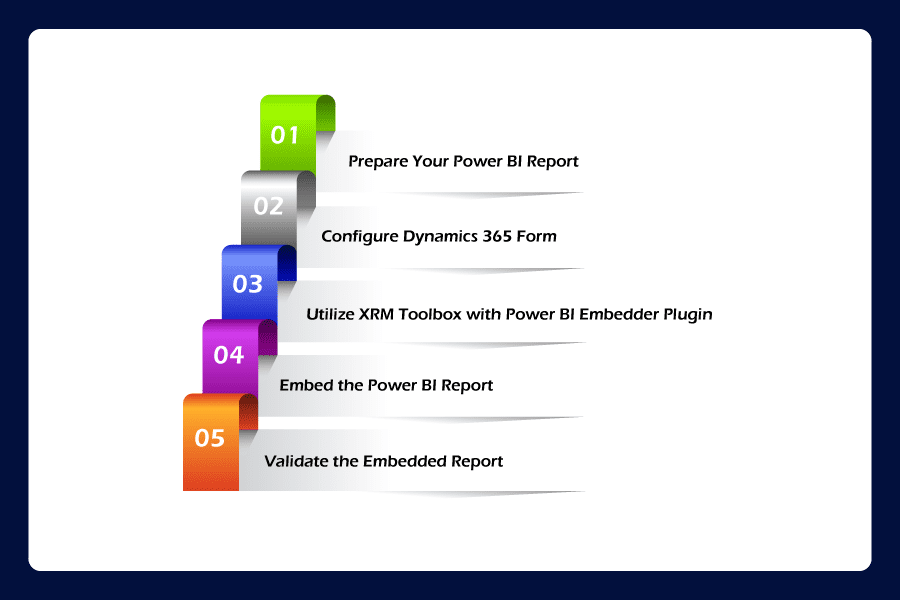
Step 1: Prepare Your Power BI Report
- Design and Finalize the Report: Create a report using Power BI Desktop. Ensure it’s finalized and tested for accuracy.
- Publish to Power BI Service: Once finalized, publish the report to the Power BI Service
Note Essential Identifiers:
- Workspace ID (Group ID): Found in the URL when viewing the report in Power BI Service. (Optional)
- Report ID: Also located in the report’s URL.
Step 2: Configure Dynamics 365 Form
- Access Power Apps: Navigate to Power Apps and select your environment.
- Select the Relevant Table: Choose the table (e.g., Account, Contact) where you want to embed the report.
Edit the Main Form:
- In the table’s menu, go to “Forms” and select the main form to edit.
- Add a new tab and name it appropriately (e.g., “Insights”).
- Within the tab, add a new section to host the Power BI report.
- Save and Publish: Ensure you save and publish the form to apply changes.
Step 3: Utilize XRM Toolbox with Power BI Embedder Plugin
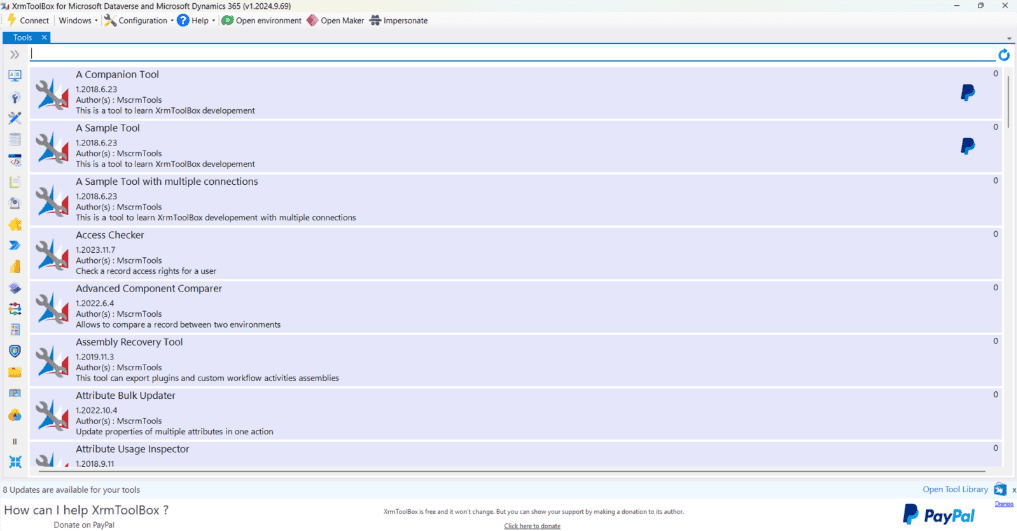
- Install XRM Toolbox: Download and install the latest version.
- Connect to Your Environment: Open XRM Toolbox and connect it to your Dynamics 365 environment.
Install Power BI Embedder Plugin:
- Within XRM Toolbox, access the Plugin Store.
- Search for “Power BI Embedder” and install it.
- Launch the Plugin: Open the Power BI Embedder plugin from the Tools menu.
Step 4: Embed the Power BI Report
Select Target Location:
- Entity: Choose the table where the report will be embedded.
- Form: Select the form edited earlier.
- Tab and Section: Choose the tab and section created for the report.
Configure Report Settings:
- Method: Select “Manual”.
- Group ID: Enter the Workspace ID obtained earlier.
- Report ID: Enter the Report ID.
- Page Name: Specify if you want a particular report page to display.
- URL: Typically, https://app.powerbi.com.
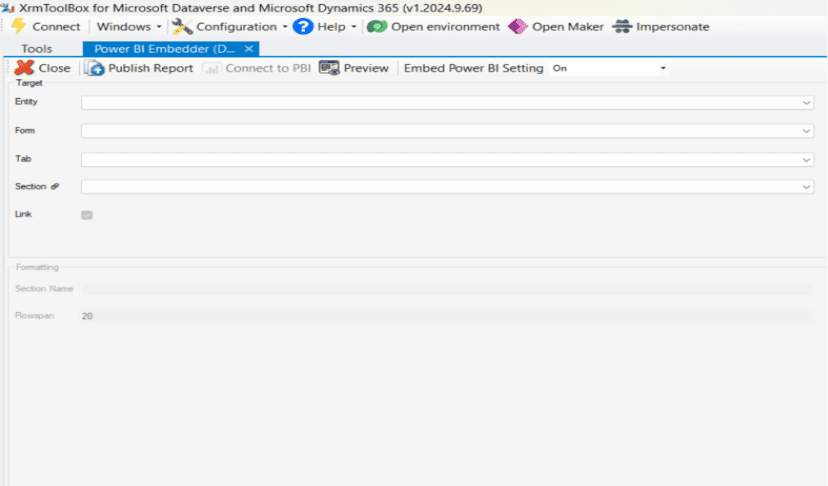
Enable Filtering (Optional):
- Check the “Filter” option to enable dynamic filtering based on the current record.
- Power BI Table & Column: Specify the table and column in the Power BI dataset to filter.
- CDS Field: Enter the logical name of the Dataverse field (formerly CDS field) used for record filtering.
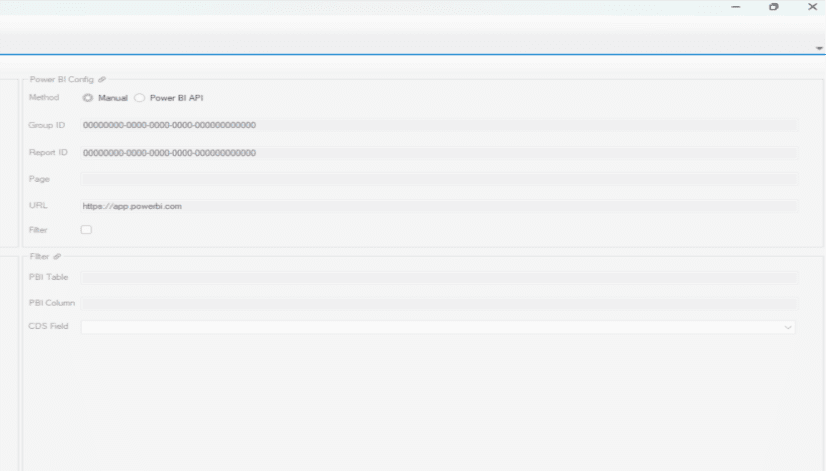
Adjust Layout:
- Section Name: Provide a user-friendly name for the report section.
- Row Span: Define the height of the report section (e.g., 10).
- Publish the Report: Click “Publish Report” to embed the Power BI report into the Dynamics 365 form.
Step 5: Validate the Embedded Report
- Access Dynamics 365: Return to Dynamics 365 and open a record from the table where the report was embedded.
- Navigate to the Report Tab: Go to the tab where the report was embedded to ensure it displays correctly.
- Verify Filtering (If Enabled): Confirm that the report reflects data specific to the current record.
What’s Worth Remembering
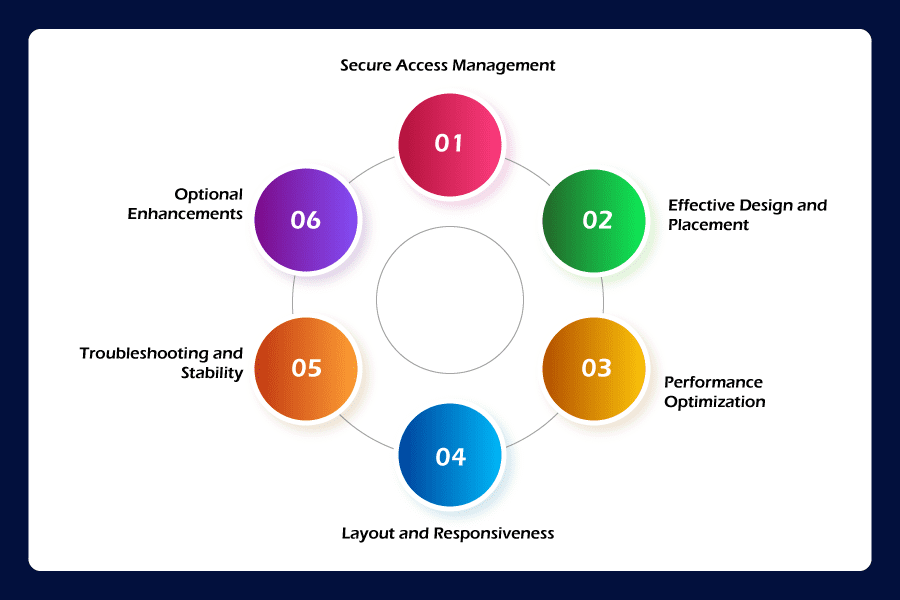
- Secure Access Management
- Leverage role-based security to control data visibility and protect sensitive insights.
- Audit report access regularly to align with evolving user roles and compliance requirements.
- Avoid “My Workspace”: It’s restrictive and not suited for shared access
- Effective Design and Placement
- Place embedded reports within relevant tabs or sections of the form to maintain a logical layout.
- Consistent & Focused Visuals: Use a consistent Dynamics 365 theme for a unified visual experience while displaying only what the user needs to take action or make decisions.
- Performance Optimization
- Prefer Import mode over DirectQuery to improve report load times and responsiveness.
- Avoid using overly complex DAX formulas that can degrade rendering speed.
- Minimize the number of visuals per page, particularly for forms accessed on lower-spec devices or mobile platforms.
- Layout and Responsiveness
- Use percentage-based iframe dimensions to support responsive design across devices.
- Test the form layout and embedded reports across standard breakpoints and devices for consistent UX.
- Adjust report height and width to avoid unnecessary scrollbars or visual overflow.
- Troubleshooting and Stability
- If reports fail to load (“content isn’t available”), confirm Group ID, Report ID, and user permissions.
- “Access denied” errors typically stem from missing workspace roles or CRM security settings.
- Use browser developer tools and Power BI’s Performance Analyzer to investigate any issues with report rendering or loading speed.
- Optional Enhancements
- Provide concise contextual help above or near the report to clarify its purpose or usage.
- Implement conditional visibility to display reports based on user role, record type, or data status.
- For advanced needs, consider dynamic iframe control via JavaScript or integrate Power Automate to trigger workflows based on report interaction, such as sending alerts when thresholds are exceeded in a visual.
Wrapping It Up
Embedding Power BI into Dynamics 365 is a practical enhancement that empowers teams to make data-driven decisions without leaving the CRM interface. This empowers CRM users with actionable insights directly within their workflows. Following this structured approach, organizations can seamlessly integrate advanced analytics into their CRM system, fostering informed decision-making and operational efficiency.
With Soluzione, you don’t need to do anything extra. Just contact us and share your requirements, and our team can turn your Dynamics 365 CRM into a reporting hub, embedding the capabilities of Power BI. Let’s get started.
Read More: https://www.solzit.com/blog/